How to Install Live Chat on Your Website (Step by Step)
Learn how to install live chat on your website step by step. Paste one snippet to add a fast chat widget and AI chatbot in minutes, on any platform you use.
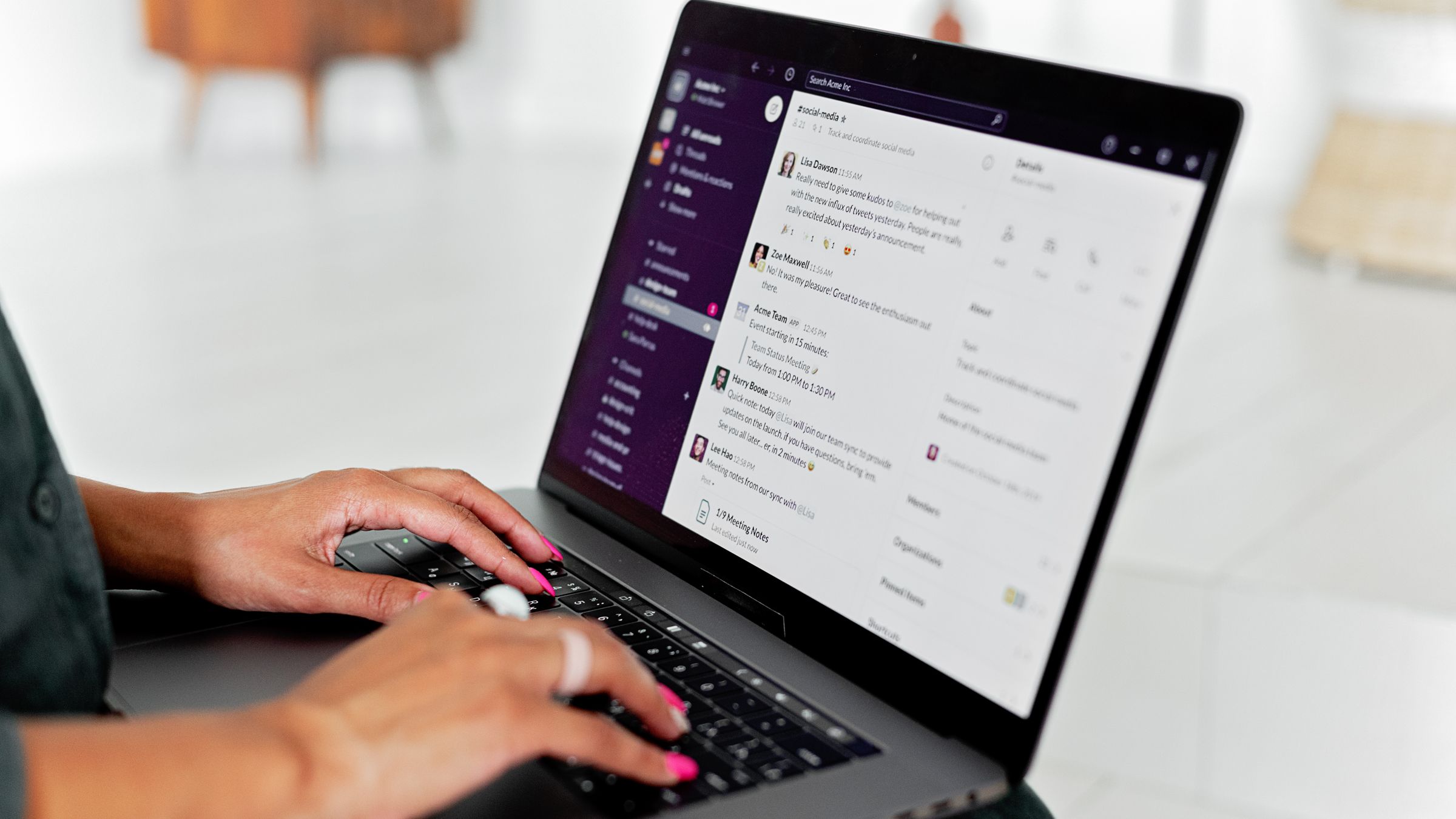
Installing live chat sounds technical, but on a modern platform it’s one of the easiest upgrades you can make to a website. The entire job comes down to pasting a single snippet of code — and once it’s in, visitors can reach you instantly instead of hunting for a contact form. This guide walks you through how to install live chat on your website, step by step, no matter what your site is built on.
How to install live chat on your website
Every install follows the same three-stage pattern: create an account, paste the snippet, then verify and customise. The only thing that changes between platforms is where the snippet goes. We’ll cover the universal steps first, then the platform specifics.
Step 1: Create your account and get the snippet
- Sign up for EasyChatDesk and open your dashboard.
- Copy your license key — you’ll drop it into the snippet below.
- Keep this universal install snippet handy:
<script>window.__ecd={license:'YOUR_LICENSE_KEY'};</script>
<script src="https://cdn.easychatdesk.com/widget.min.js" async></script>
The async attribute loads the widget in the background, so it never slows your pages down. This same snippet works on every platform — only the paste location differs.
Step 2: Paste the snippet into your platform
Find your platform below and add the snippet in the spot indicated. In every case, the goal is to place it just before the closing </body> tag (or in a site-wide footer/header area) so it loads on all pages.
- Plain HTML — paste it before
</body>in your page, ideally in a shared header or footer include. - WordPress — paste it into your theme’s footer, or use a header/footer scripts plugin.
- Shopify — open Online Store → Themes → Edit code →
theme.liquidand paste before</head>. - Wix — go to Settings → Custom Code, add the snippet, and apply it to all pages.
- Squarespace — paste it into Settings → Advanced → Code Injection → Footer.
- Webflow — paste it into Site Settings → Custom Code → Footer Code, then publish.
- BigCommerce — add it through Storefront → Script Manager as a footer script on all pages.
- Blogger — paste it into your Theme → Edit HTML before
</body>.
Save and publish, and the widget goes live.
Step 3: Verify and customise
Open your live site in an incognito window. The chat launcher should appear in the corner. Send a test message and confirm it reaches your dashboard. Then spend a few minutes on the essentials:
- Match your brand colour and pick the launcher position.
- Write a welcome message suited to your audience.
- Set a proactive greeting on your highest-intent pages.
- Enable the AI chatbot so questions get answered even when you’re offline.
See the full set of options on the live chat widget features page.
What “installing live chat” actually gives you
A modern live chat install is more than a chat bubble. With EasyChatDesk you get a full toolkit from one snippet:
- Live chat — real-time conversations with visitors as they browse.
- AI chatbot — automated answers trained on your content, around the clock.
- Ticketing — anything that needs follow-up becomes a tracked ticket instead of getting lost.
- Custom forms — capture leads, bookings or support details right inside the chat.
- Connectors — link the tools you already use through our connectors.
Make it work around the clock
The single biggest reason installs underperform is leaving the widget unattended after hours. The AI chatbot solves that: train it on your FAQ, products and policies, and it answers routine questions any time of day, opening a ticket for anything that needs a human. Visitors get help even when you’re asleep.
Common installation mistakes to avoid
- Forgetting to publish. On builders like Webflow and Wix, code only goes live after you publish.
- Pasting the wrong key. Double-check you copied your full license key.
- Adding it to one page only. Use a site-wide location so chat appears everywhere.
- Skipping the test. Always send a test message before calling it done.
- Ignoring mobile. Confirm the launcher behaves on phones, where much of your traffic lives.
Pricing and getting started
You can begin with free live chat software for your website to test the install at no cost, then move up when you need unlimited history, custom forms, ticketing and advanced AI. EasyChatDesk plans start at $17/agent/month with a 15-day free trial. Ready to install? Start your free trial.
The takeaway
Installing live chat is the same three steps everywhere: sign up and grab your key, paste the one-line EasyChatDesk snippet into your site’s footer or header, then verify and customise. Whatever your platform, you can be live in minutes — and with the AI chatbot switched on, your site answers visitors around the clock from day one.
Level up your customer support
Try EasyChatDesk free: live chat, help desk ticketing and an AI chatbot in one platform.
Start for freeRelated articles
9 Best Chat Widgets for Websites in 2026
A hands-on roundup of the best chat widgets for websites — from free live chat to AI chatbots and full help desks. Compare features, pricing and which one fits your team.
Read more
Free Live Chat for Blogger: How to Add It
Learn how to add free live chat to a Blogger blog. Paste one snippet to install a fast chat widget and AI chatbot in minutes so readers can reach you instantly.
Read more
How Does Live Chat Work for Customer Service?
How does live chat work? Learn the flow from chat widget to agent inbox, how AI chatbots and ticketing fit in, and how to set it up on your site.
Read more