How to Add Live Chat to a BigCommerce Store
A step-by-step guide on how to add live chat to a BigCommerce store. Install a fast chat widget and AI chatbot in minutes to boost sales and support shoppers.
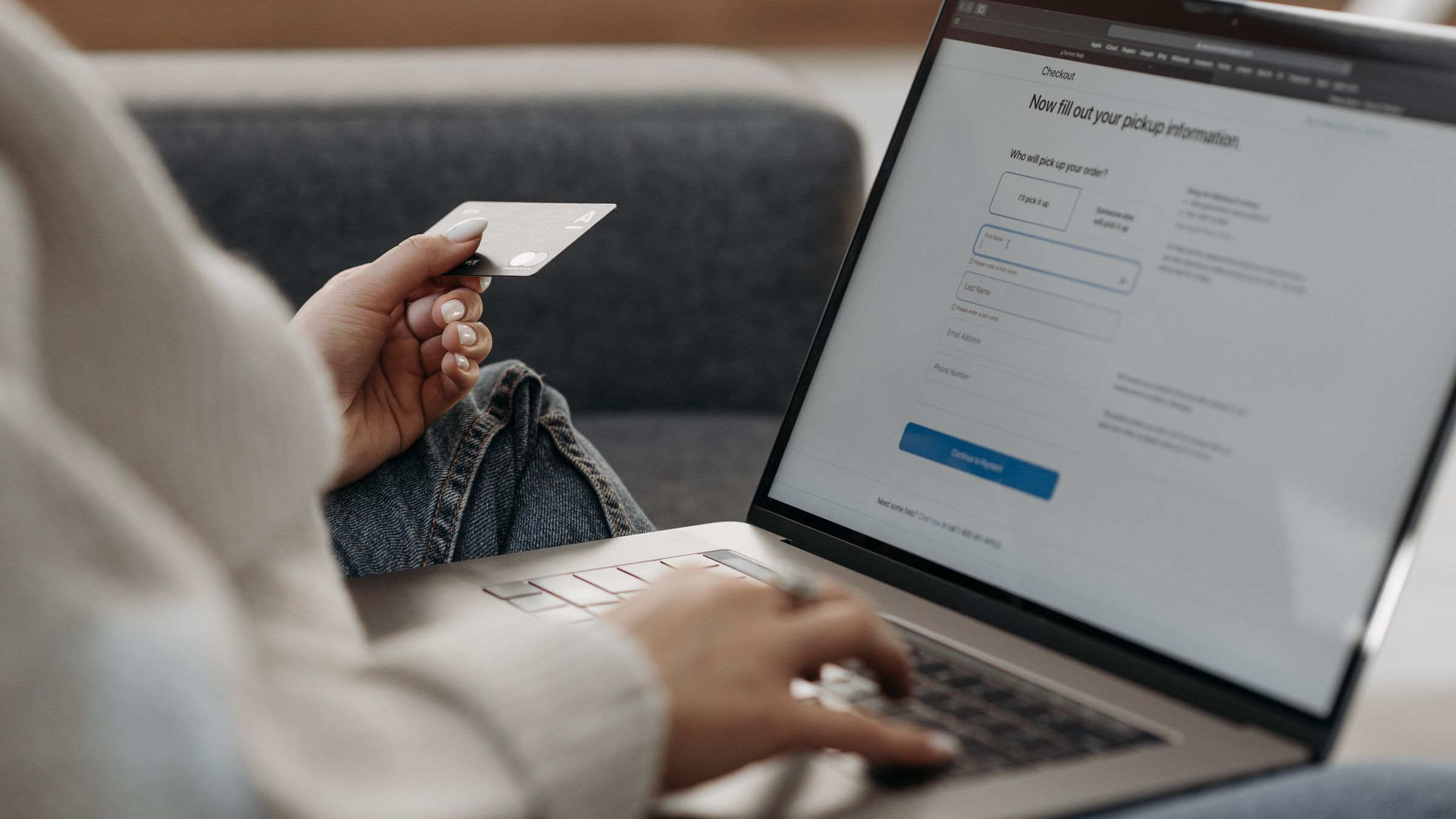
BigCommerce shoppers make decisions in the moment — comparing variants, checking shipping times, wondering whether an item is in stock. If there’s no fast way to ask, they bounce to a competitor who answers. A live chat widget keeps that question and the purchase in the same session. This guide shows you exactly how to add live chat to your BigCommerce store, two ways, in just a few minutes.
How to add live chat to a BigCommerce store
You have two solid paths:
- The Script Manager method — BigCommerce’s built-in tool for adding scripts, no theme editing required.
- The theme code method — paste the snippet into your theme files if you prefer full control.
The Script Manager method is the cleanest, so we’ll start there.
Method 1: Add the snippet via Script Manager (recommended)
- Create your EasyChatDesk account and copy your license key from the dashboard.
- In your BigCommerce control panel, go to Storefront → Script Manager.
- Click Create a Script and fill in:
- Name: EasyChatDesk
- Location: Footer
- Pages: All pages
- Script category: Functional (or as appropriate)
- Script type: Script
- Paste this snippet into the script content box:
<script>window.__ecd={license:'YOUR_LICENSE_KEY'};</script>
<script src="https://cdn.easychatdesk.com/widget.min.js" async></script>- Click Save.
The async attribute keeps your store fast by loading the widget in the background. Because you set it to all pages in the footer, the launcher now appears storewide.
Method 2: Add the snippet to your theme files
Prefer to edit the theme directly? You can paste the snippet into your stencil theme:
- Go to Storefront → My Themes, then on your active theme choose Edit Theme Files (or download, edit, and upload).
- Open the
templates/layout/base.htmlfile. - Paste the same snippet just before the closing
</body>tag. - Save and apply the theme.
Because base.html wraps every page, the widget now appears across your entire store.
Step 3: Verify and customise
Open your live storefront in an incognito window. The chat launcher should appear in the corner. Send a test message and confirm it reaches your dashboard. Then spend a few minutes on the essentials:
- Match your brand colour and choose the launcher position.
- Write a welcome message for shoppers — e.g. “Questions about sizing or shipping? Ask away!”
- Set a proactive greeting on product and cart pages where hesitation peaks.
- Enable the AI chatbot so questions get answered even when you’re offline.
See the full options on the live chat widget features page.
Why live chat is a big deal for BigCommerce stores
Ecommerce is where live chat earns its keep, because the questions tie directly to buying decisions:
- Pre-sale questions — sizing, materials, compatibility and delivery times answered instantly so the sale doesn’t stall.
- Cart recovery — a proactive greeting on the cart page can catch a hesitating buyer before they leave.
- Order tracking — an AI chatbot connected to your store data can field “where’s my order?” without a human.
- Upsells — agents and bots can suggest complementary products mid-conversation.
Our ecommerce customer support software is built around exactly these scenarios.
Make it work around the clock
Most store owners can’t be online 24/7, but shoppers browse at all hours. The fix is the AI chatbot. Train it on your catalogue, shipping policy and FAQ, and it handles the routine questions overnight, creating a ticket for anything that needs your attention. No late-night shopper leaves without an answer.
Best practices for BigCommerce live chat
- Prioritise product and checkout pages. That’s where chat converts hardest.
- Keep replies fast. Even a chatbot acknowledgement beats silence.
- Use tickets for follow-ups. Returns and complex order issues should never get lost in a chat thread.
- Check mobile. A large share of store traffic is mobile, so confirm the widget behaves on phones.
- Review transcripts weekly. Recurring questions tell you what to add to your product descriptions.
Pricing and getting started
You can start with free live chat software for your website to test the concept, then move up to a paid plan when you need unlimited history, custom forms, ticketing and advanced AI. EasyChatDesk plans begin at $17/agent/month with a 14-day free trial, so you can measure the lift in conversions on your own store before committing. Ready to start? Start your free trial.
The takeaway
Adding live chat to BigCommerce is fast: use Script Manager for a no-theme-editing setup, or paste the one-line snippet into base.html if you want manual control. Either way, focus it on your product and checkout pages, switch on the AI chatbot for round-the-clock coverage, and turn hesitant browsers into buyers.
Running other platforms too? Solutions by platform links the install guide for each one.
Level up your customer support
Try EasyChatDesk free: live chat, help desk ticketing and an AI chatbot in one platform.
Start for freeRelated articles
10 Best Chat Widgets for Websites in 2026
A hands-on roundup of the best chat widgets for websites — from free live chat to AI chatbots and full help desks. Compare features, pricing and which one fits your team.
Read more 9 Benefits of a Live Chat Widget on Your Website
Discover the real benefits of using a live chat widget on your website — higher conversions, faster support, lower costs and happier customers. A practical guide.
Read more
Free Live Chat for Blogger: How to Add It
Learn how to add free live chat to a Blogger blog. Paste one snippet to install a fast chat widget and AI chatbot in minutes so readers can reach you instantly.
Read more