How to Add Free Live Chat to an HTML Website
A step-by-step guide on how to add free live chat to a plain HTML website. Paste one snippet to install a fast chat widget and AI chatbot in just a few minutes.
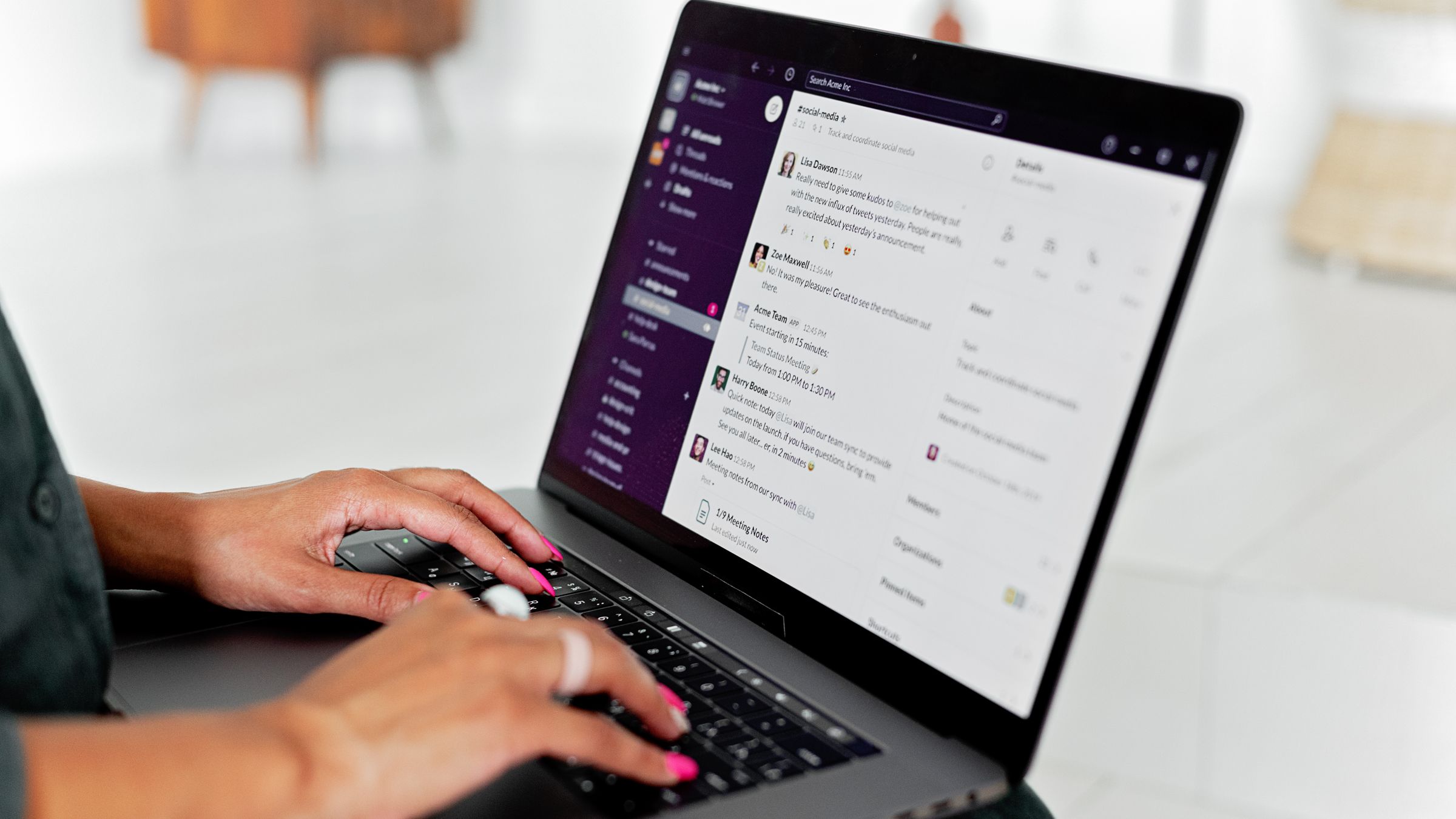
If your site is hand-coded HTML — no WordPress, no page builder, just files you edit and upload — you might assume adding live chat is complicated. It isn’t. A modern chat widget is a single script tag you drop into your markup, and it works the same whether your site is one page or a hundred. This guide shows you exactly how to add free live chat to a plain HTML website in just a few minutes.
How to add free live chat to an HTML website
The whole job is one snippet pasted into your HTML. There are two ways to do it depending on how your site is built:
- The single-file method — paste the snippet directly into a page’s
<head>or before</body>. - The shared-include method — if you use a common header or footer include, add it once there to cover every page.
We’ll cover the single-file method first since it works for any HTML site.
Method 1: Paste the snippet into your HTML (recommended)
- Create your free EasyChatDesk account and copy your license key from the dashboard.
- Open the HTML file you want chat to appear on in your code editor.
- Paste this snippet just before the closing
</body>tag (or inside<head>):
<script>window.__ecd={license:'YOUR_LICENSE_KEY'};</script>
<script src="https://cdn.easychatdesk.com/widget.min.js" async></script>- Save the file and upload it to your server via FTP, your host’s file manager, or your deploy pipeline.
The async attribute loads the widget in the background so your page renders without waiting on it. That’s all there is to it — refresh the page and the launcher appears.
Method 2: Add it once to a shared include
If your site uses a shared header or footer — for example a PHP include, a static-site-generator layout, or a templating partial — add the snippet there instead of in every file:
- Open your shared
header.html,footer.php, or layout template. - Paste the same snippet before
</body>. - Save and redeploy.
Now every page that uses that include shows the chat widget, and you only maintain the snippet in one place.
Step 3: Verify and customise
Open your live site in an incognito window. The chat launcher should appear in the corner. Send a test message and confirm it reaches your dashboard. Then take a few minutes to tune the basics:
- Match your brand colour and pick the launcher position.
- Write a welcome message suited to your visitors.
- Set a proactive greeting on pages where people tend to have questions.
- Enable the AI chatbot so questions get answered even when you’re offline.
See everything you can configure on the live chat widget features page.
Why a script-tag widget is ideal for static sites
Plain HTML sites are fast and simple, and a good chat widget respects that:
- No backend required — the widget runs entirely from a hosted script, so you don’t need a database or server-side code.
- No build step — it’s just markup, so it works with hand-coded sites, static generators and old-school hosting alike.
- Lightweight — the async script won’t drag down your page speed.
If you’re new to embedding scripts, our general walkthrough on how to add live chat to your website easy and free covers the same idea in more detail.
Make it work around the clock
A static site doesn’t have an admin who’s always logged in, which makes the AI chatbot especially useful here. Train it on your FAQ and key pages, and it answers routine questions any time of day, creating a ticket for anything that needs a human reply. Visitors get help even when nobody’s watching the inbox.
Best practices for HTML live chat
- Add it to a shared include so new pages get chat automatically.
- Keep first replies fast. An instant chatbot reply beats a silent corner.
- Use tickets for follow-ups. Detailed requests shouldn’t live only in a chat thread.
- Check mobile. Confirm the launcher sits well on small screens.
- Review transcripts weekly. Repeat questions tell you what to document on your pages.
Pricing and getting started
The free live chat software for your website plan is the perfect starting point for a simple HTML site — paste the snippet, start chatting, pay nothing. When you grow into needing unlimited history, custom forms, ticketing and advanced AI, EasyChatDesk paid plans begin at $17/agent/month with a 14-day free trial. Ready to begin? Start your free trial.
The takeaway
Adding live chat to a plain HTML website is genuinely a one-snippet job: paste the EasyChatDesk script before </body>, ideally in a shared include so it covers every page, and you’re live. Turn on the AI chatbot for round-the-clock coverage, and your simple static site can answer visitors as well as any platform.
The generic version of this, plus conditional loading and Content Security Policy directives: install the widget.
Level up your customer support
Try EasyChatDesk free: live chat, help desk ticketing and an AI chatbot in one platform.
Start for freeRelated articles
10 Best Chat Widgets for Websites in 2026
A hands-on roundup of the best chat widgets for websites — from free live chat to AI chatbots and full help desks. Compare features, pricing and which one fits your team.
Read more 9 Benefits of a Live Chat Widget on Your Website
Discover the real benefits of using a live chat widget on your website — higher conversions, faster support, lower costs and happier customers. A practical guide.
Read more
Free Live Chat for Blogger: How to Add It
Learn how to add free live chat to a Blogger blog. Paste one snippet to install a fast chat widget and AI chatbot in minutes so readers can reach you instantly.
Read more